Step 1 — Choose the right photo
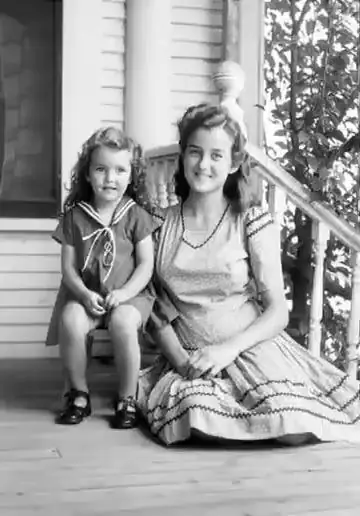
The photo is 80% of the result. Image-to-video models extend the frame you give them, so every flaw is carried into motion.
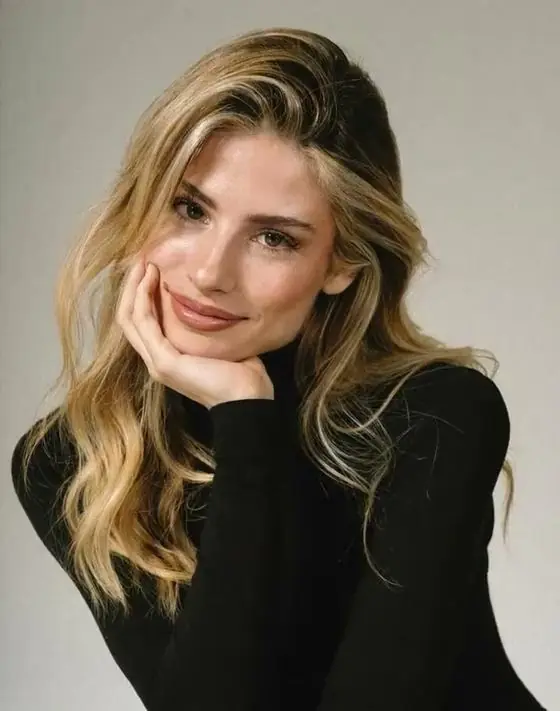
- Sharp and well lit. Blurry or dark photos produce smeary faces.
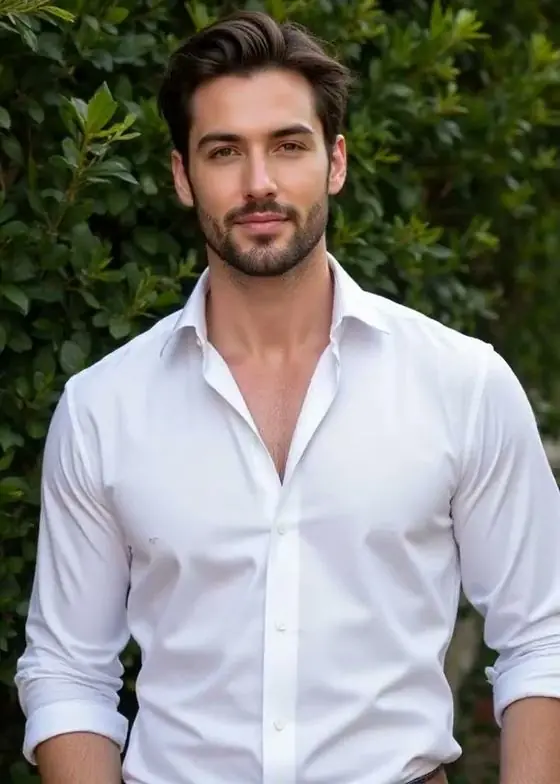
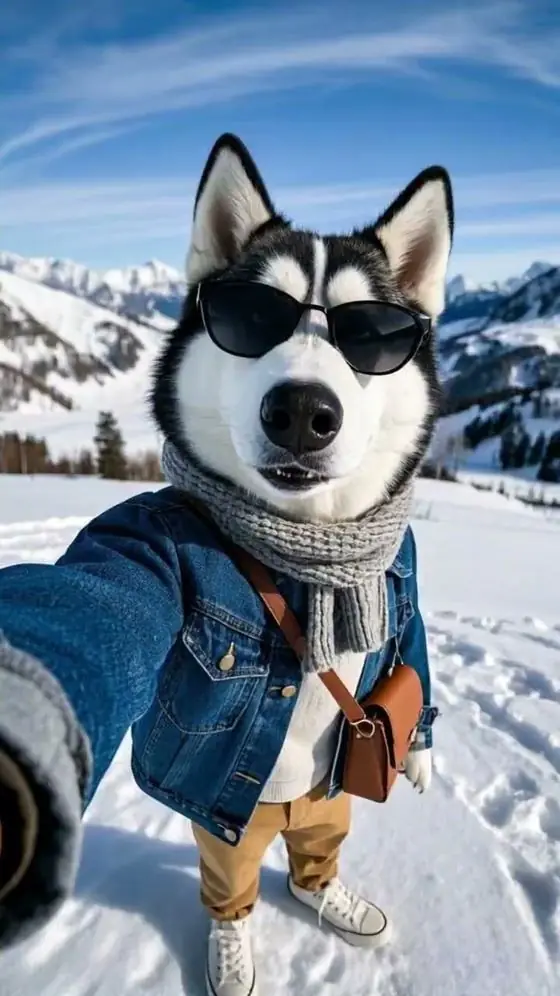
- Clear subject. One or two people, a pet or a product — not a crowd.
- Space to move. For dancing or walking, use a full-body photo with room around the subject.
- Original file. Avoid heavily compressed screenshots from messengers.
Step 2 — Upload to an image-to-video tool
Open the VideoAI studio in any browser. No app or account is required. Upload a JPG, PNG or HEIC photo.
Step 3 — Write a motion prompt
Good prompts describe subject action + camera + atmosphere in one or two sentences:
The woman turns toward the camera and smiles, her hair moves in the wind, slow dolly-in, golden hour light, cinematic.- Use verbs: turns, walks, waves, laughs, spins, leans in.
- Name the camera: static, slow push-in, orbit, handheld.
- Keep it to one main action — clips are 5 seconds.
- Not sure? Start from a ready-made style and edit its prompt.
Step 4 — Pick the aspect ratio
| Platform | Best ratio |
|---|---|
| TikTok, Reels, Shorts, Stories | 9:16 |
| Instagram / Facebook feed | 1:1 or 3:4 |
| YouTube, presentations | 16:9 |
| Classic photo look | 4:3 |
Step 5 — Generate, review, regenerate
VideoAI renders in about 90 seconds. Watch the clip twice: once for the face, once for hands and background. If something warps, simplify the prompt or try again — every render is a new take.
Common problems and fixes
| Problem | Fix |
|---|---|
| Face changes | Use a sharper, frontal photo; avoid extreme expressions in the prompt |
| Barely any motion | Add clear verbs and a camera move (“slow push-in”) |
| Warped hands | Ask for fewer hand gestures; crop out hands near the edge |
| Background melts | Request a static camera, or use a cleaner background |
Step 6 — Download and share
Download the MP4 and post it, or tap Share. Add music in TikTok or CapCut, or enable VideoAI's free cinematic sound before generating.
FAQ
Can I make an AI video from a photo for free?
Yes. VideoAI gives every new visitor one free 5-second 720p AI video without sign-up.
What is the best photo for AI video?
A sharp, well-lit photo with one or two clearly visible subjects and some space around them.
How long does it take to make an AI video from a photo?
With VideoAI about 90 seconds on average, up to 3 minutes.
Do I need prompt skills?
No. Ready-made styles include tested prompts; you can edit them or write your own in plain English.